Newsroom
HoloTab Tutorial
HoloTab is a Chrome extension that navigates the web like you do, so you can skip the clicking and typing altogether.
April 15, 2026 · 4 min read

Get started on HoloTab
HoloTab is a Chrome extension that can navigate the web exactly like you do, so you can skip the clicking and typing altogether.
Most AI tools stop at the chat box. HoloTab goes further: it works within your browser (clicking, typing, navigating) to complete tasks on your behalf. Think of it as an AI browser companion capable of working on any website.
HoloTab lives as a side panel in Chrome. You type (or speak) what you want done, and HoloTab handles the rest: navigating pages, filling forms, sending messages, and reporting back.
Here's how to get started in less than five minutes. For the full product guide, including routines, schedules, and safety, read the docs.
Setup
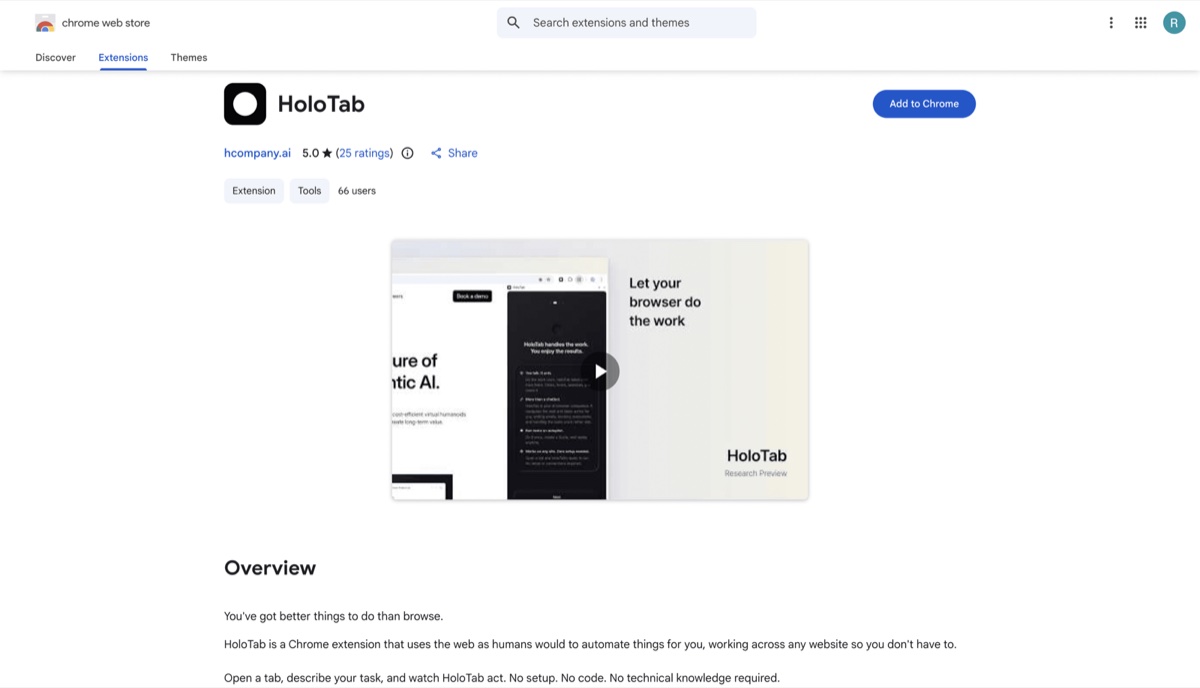
HoloTab is now available in the Chrome Web Store. Install it here and try it for free. Next, click the extension icon to open HoloTab in the side panel.
 (opens full size in a new tab)
Install HoloTab from the Chrome Web Store.
Tip: Once you've installed the extension, pin it to your Chrome toolbar so HoloTab is always one click away.
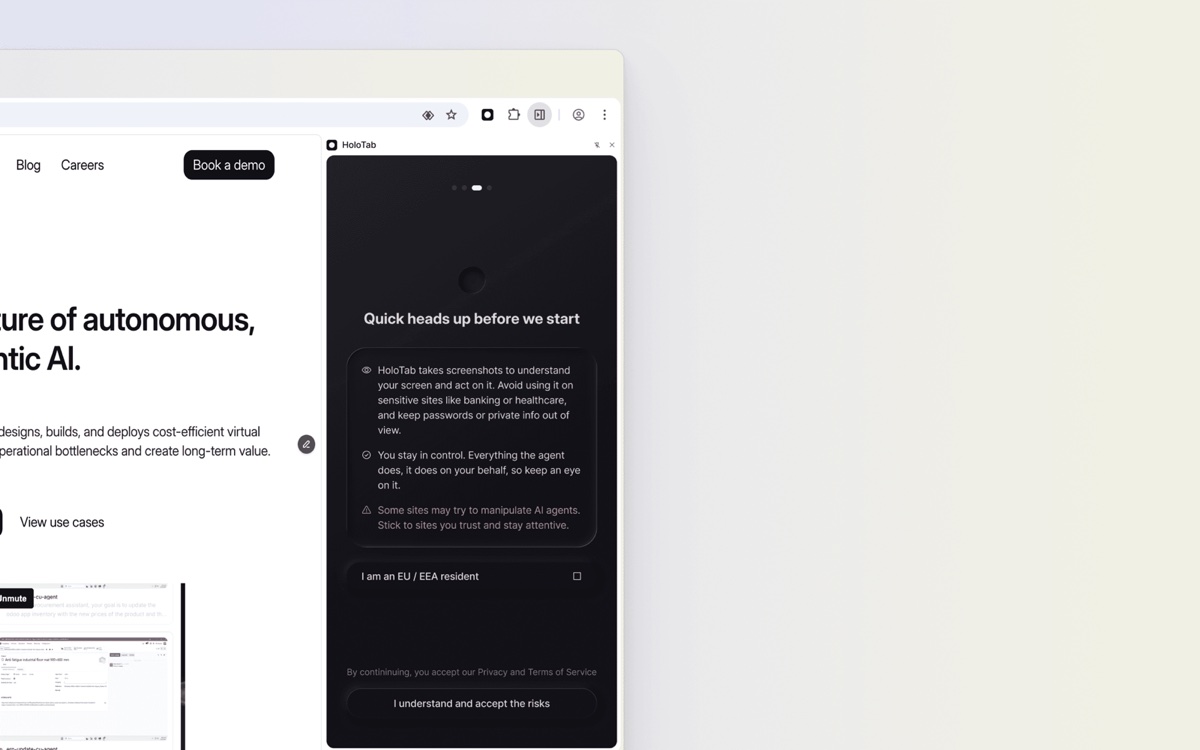
Before creating an account, HoloTab displays a safety notice. Here's what it actually means:
 (opens full size in a new tab)
HoloTab explains its safety controls before account creation.
- Screenshots of the active tab: HoloTab needs to "see" what's on the screen to act on it. These are temporary and deleted after each session.
- Opening new tabs: To work on your behalf, by booking meetings or sending emails, for example, HoloTab often has to open new tabs (e.g., Google Calendar, Gmail).
- Sensitive sites are blocked: Banking and similar high-risk services are off-limits by design due to the sensitive nature of the data involved, including PII, data privacy considerations, and ethical constraints.
When ready, click Get Started, sign in with Google, and you're good to go. The whole process takes under a minute.
Your first task
Not sure where to start? Try one of our pre-built routines, like booking a restaurant or creating an eBay listing. Or just type in what you need.
The panel shows you HoloTab's reasoning in real time: which tab it's looking at, what it has decided to do next, and what it found. You stay in control the entire time: you can stop, redirect, or approve before anything is sent.
Tips for better prompts: Be specific about the platform ("use Gmail", "search on OpenTable"), mention any constraints or requirements ("wait for my approval before sending"), and describe the goal more than the steps.
 (opens full size in a new tab)
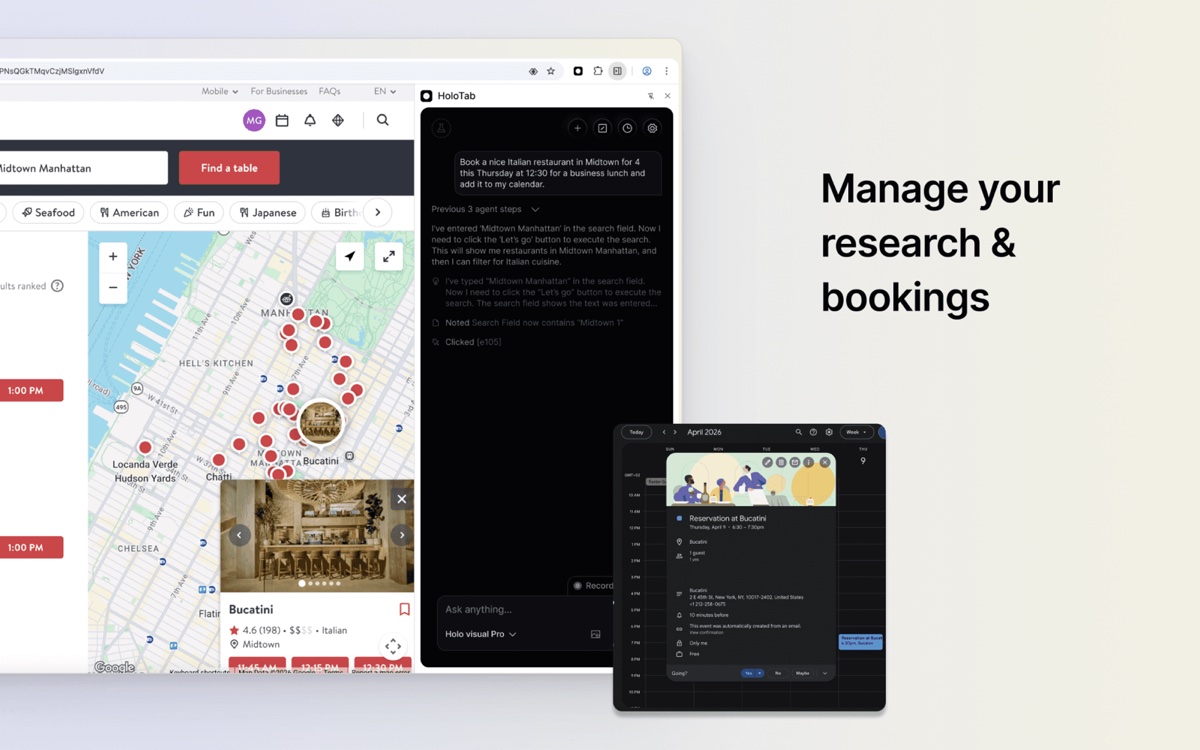
HoloTab can research availability, make a booking, and add it to your calendar.
What HoloTab can do for you
Book a restaurant
Context: Big client dinner coming up. You want a great Italian spot, booked, without spending 20 minutes on OpenTable.
Prompt: Find a nice Italian restaurant in Midtown for 4 this Thursday at 12:30 for a business lunch and add it to my calendar.
What happens: HoloTab searches, checks availability, books the table, and adds the event to Google Calendar, automatically.
Restaurant found, table booked, calendar updated, all from one prompt.
Clear your inbox
Context: Forty unread emails and a meeting in ten minutes.
Prompt: Check my Gmail inbox and write draft replies for each unread email that needs a response.
What happens: HoloTab reads each email, drafts a contextually appropriate reply, and queues them up. You review and hit send.
Add LinkedIn leads to HubSpot
Context: You've been collecting leads on LinkedIn and need them in your CRM without the copy-paste grind.
Prompt: Go to my LinkedIn connections, find anyone with "Head of Growth" in their title, and add them as contacts in HubSpot with their name, company, and profile URL.
What happens: HoloTab navigates both platforms, pulls the data, and populates HubSpot, no integration required.
Power features
Once you've run a few tasks manually, these three features take HoloTab to the next level.
- Voice input: Can't type right now? Just speak your task. Voice works the same as text. HoloTab listens and executes.
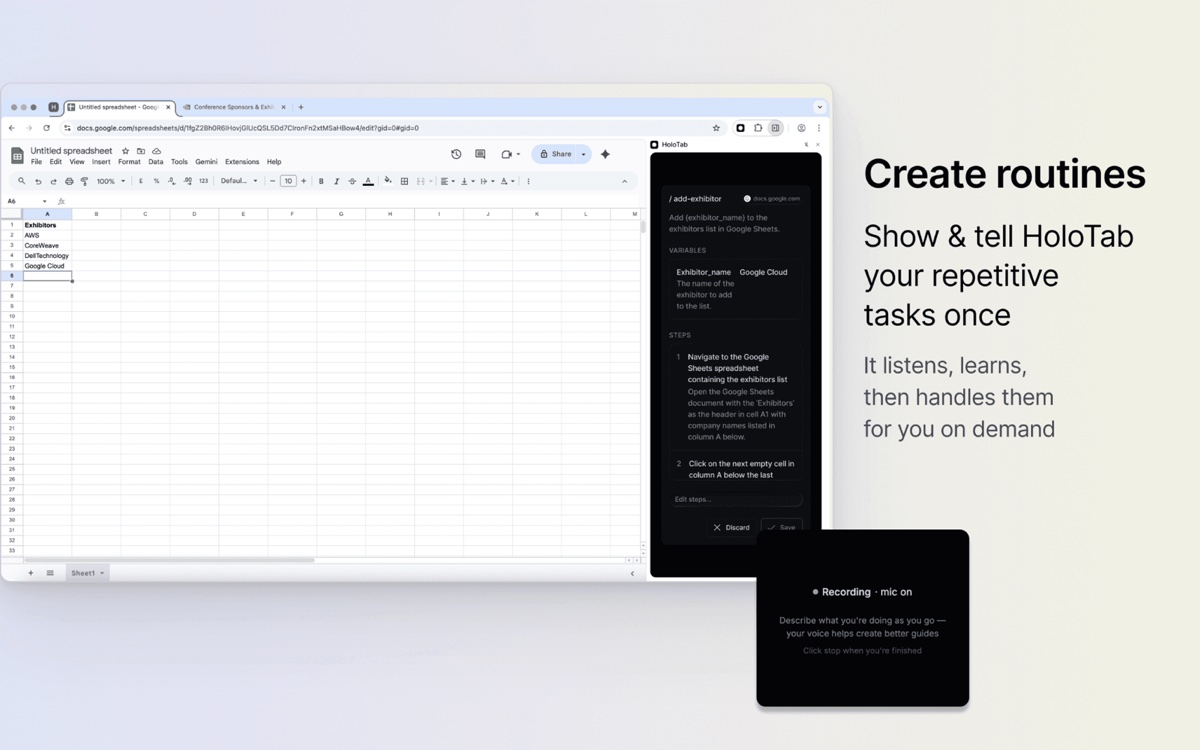
- Record a routine: Show HoloTab how to do it once. It watches, learns the steps, and creates a reusable routine.
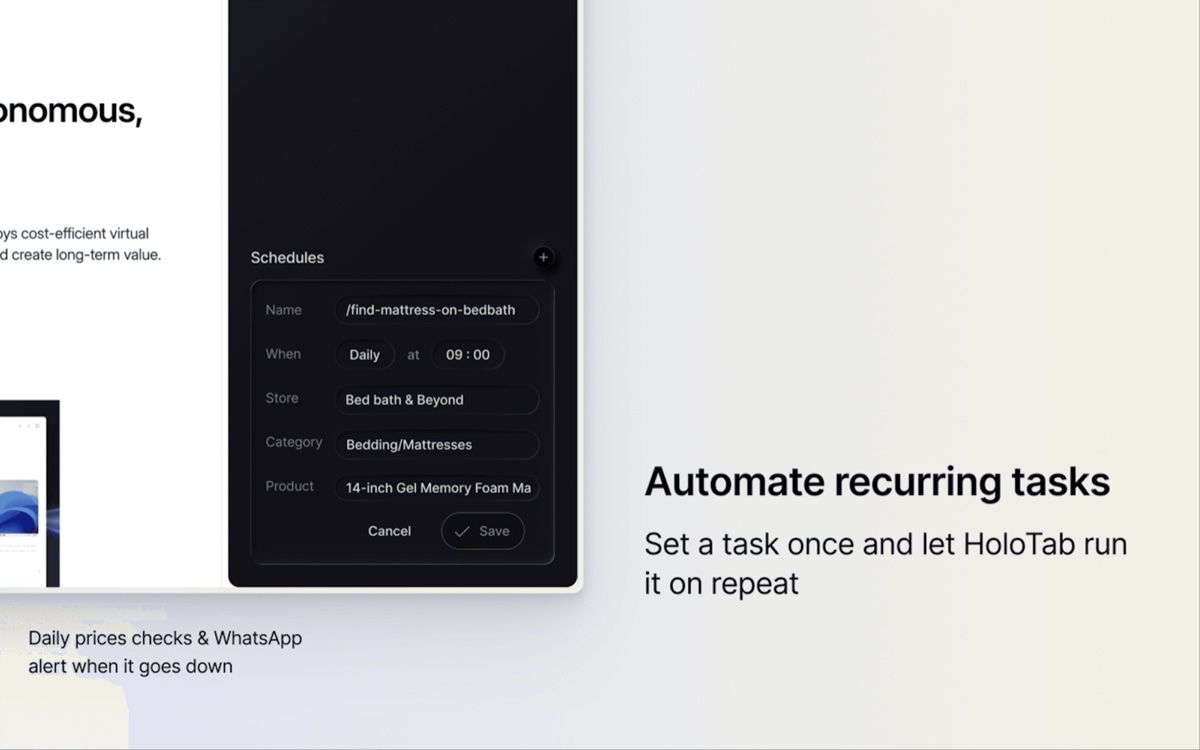
- Schedules: Run any routine automatically daily, weekly, monthly. Set it once and let it run in the background without you.
Recording a routine: HoloTab watches what you do, then replicates it on demand.
 (opens full size in a new tab)
Show and tell HoloTab a repetitive task once to create a reusable routine.
Scheduling: define the task variables, pick a frequency, and let HoloTab do the rest.
 (opens full size in a new tab)
Set a recurring task once and let HoloTab run it on repeat.
The record and schedule combination is where casual users become power users. You run a task once, teach HoloTab how to do the same thing, and it handles every subsequent run on a timer, with whatever variables you set.
And with that, you're all set to stop clicking and start getting your time back.
You've got better things to do than browse. Leave it to HoloTab.